
Key Takeaways
- Preservation means keeping the original file intact — not copying it, trimming it, or sharing it before the safety contact has reviewed it.
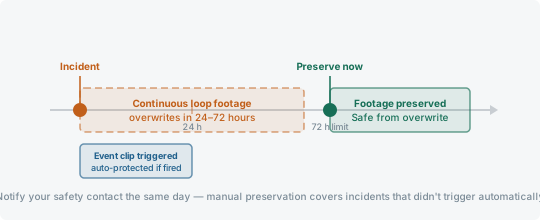
- The window is short. Many systems overwrite footage within 24 to 72 hours if the recording wasn't triggered or manually flagged. Act the same day.
- If you're unsure how to preserve footage from your specific system, call your safety contact before touching anything. Uninformed action is how footage gets lost.
Related documentation steps
Dash cam handling usually connects to retention policy, claim evidence, privacy controls, and potential litigation — especially when footage may be requested later.
footage retention policy · video in insurance claims · driver-facing camera privacy · dash cam footage in civil litigation
The preservation window
Most continuous-loop dash cam systems overwrite footage when storage fills — on a typical SD-card system, that can happen within 24 to 72 hours depending on storage size and recording resolution. Event-triggered clips are usually protected from overwrite automatically, but only if the trigger actually fired.
An incident that didn't trigger the G-sensor — a low-speed contact, a near-miss involving sharp steering without hard braking — may not be protected. In those cases, preservation requires manual action before the loop closes over that segment.
Notifying the safety contact immediately
Call your company safety contact the same day as the incident and specifically say that footage exists and needs to be preserved. They can initiate the correct preservation step for your system — whether that means locking a cloud clip, pulling an SD card, or triggering a manual upload.
Do not assume the system will protect footage automatically because an incident occurred. Automatic protection only works when the system detected a trigger event. Manual notification covers the cases it doesn't.
Details to give when you call
Give the unit number, driver name, exact date, approximate time zone, route or location, direction of travel, and whether the truck was moving or parked. If there was a manual event button, say whether it was pressed.
Clip searches are timestamp-driven. A vague report such as 'sometime this afternoon near Dallas' can waste the same window you are trying to protect.
What not to do
Do not copy the footage to your personal phone or a personal drive before the safety contact has reviewed it. A copy made by the driver without authorization creates chain-of-custody questions that complicate both the claim and any legal process that follows.
Do not trim, edit, or delete any portion of the footage — even if part of it shows something unflattering. Altering evidence creates legal exposure substantially worse than whatever the unedited footage shows. Preserve everything.
Owner-operators and company drivers: who does what
The preservation process differs depending on whether you're an owner-operator managing your own equipment or a company driver reporting to a safety contact. Both paths lead to the same outcome — footage preserved and in the right hands — but the steps differ.
The common mistake in both cases: waiting to see whether the incident turns into a claim before preserving footage. By then the window may have closed.
| Step | Owner-operator | Company driver |
|---|---|---|
| First call | Call your insurer or broker directly | Call your company safety contact |
| Initiating preservation | Pull the SD card, lock the cloud clip, or trigger a manual upload based on your specific system | Describe the incident and confirm footage exists — let the safety contact direct the preservation step for your system |
| Who reviews first | You, then your insurer or attorney per their process | Safety contact — do not review or copy footage before they have accessed it |
| Sharing footage externally | With insurer per their request process; log who received what and when | Follow the safety contact's direction; do not share independently with outside parties |
In both cases: do not edit, trim, or delete any portion of footage before it has been reviewed by the appropriate party.
If the footage is already gone
If the incident occurred more than a few days ago and preservation wasn't initiated, the footage may already be overwritten. Note this in the incident file and report it to the safety contact — don't assume or hope the footage is still there.
Some cloud-connected systems retain footage on remote servers longer than the local device does. The safety contact or the system vendor can confirm whether remote backup is available for the relevant timeframe.
How to log the handoff
Record who preserved the footage, when it was preserved, where the original file is stored, and who received any review copy. A short handoff log is often enough to show that the file did not disappear into an informal message thread.
If a copy is sent to an insurer, broker, attorney, or investigator, note the date, recipient, file name, and delivery method. Keep the original in the system or evidence folder under company policy.
Step-by-step checklist
- Preserve the original video file before sharing copies.
- Record camera name, vehicle number, date, time, and time zone.
- Save related telematics or event-trigger details when available.
- Notify the company contact, insurer, or claims contact under policy.
- Avoid editing, trimming, deleting, or overwriting footage.
Evidence Handling
Preserve original files whenever possible. Record where each file came from, who handled it, and when it was shared.
Do not delete, modify, trim, or overwrite evidence because it seems unhelpful. Follow company policy, insurer instructions, and any legal hold process.
Legal Boundary
This is general information only. It is not legal advice and does not tell you how to handle a claim, lawsuit, investigation, subpoena, legal hold, or evidence dispute.
Rules and duties can vary by jurisdiction, company policy, contract, and facts. Ask a qualified professional when a decision could affect a driver, claim, or case.
Source Notes
- 49 CFR 390.15: Assistance in Investigations and Accident RegistereCFR · official · last checked 2026-06-08Supports: accident-recordkeeping, incident-documentation, internal-review
Supports general accident register and recordkeeping context. Readers must check current rule text.
- 49 CFR Part 379: Preservation of RecordseCFR · official · last checked 2026-06-08Supports: record-retention, preservation, company-policy
Used as broad preservation-of-records context. Pages do not provide a retention schedule.
- Motor Carrier Safety PlannerFMCSA · official · last checked 2026-06-08Supports: safety-management, driver-policy, documentation
General carrier safety management and recordkeeping reference.
- Roadway SafetyNational Safety Council · industry · last checked 2026-06-08Supports: driver-safety, coaching, incident-prevention
Industry safety reference for driver coaching and incident prevention language.
For source notes and related resources, visit https://www.crashprooftruck.com